
Download for iPhone and iPad
Install EventHex Scanner from the Apple App Store, then open the event or assigned scanning point.
Apple App StoreGive event-day teams the EventHex Scanner app on iOS or Android, validate attendee QR tickets, capture check-ins through connectivity gaps, and keep arrival counts visible as the venue fills.
Install the EventHex Scanner app for the event-day team and sign in with the access assigned by the organizer.
Install EventHex Scanner from the Apple App Store, then open the event or assigned scanning point.
Apple App Store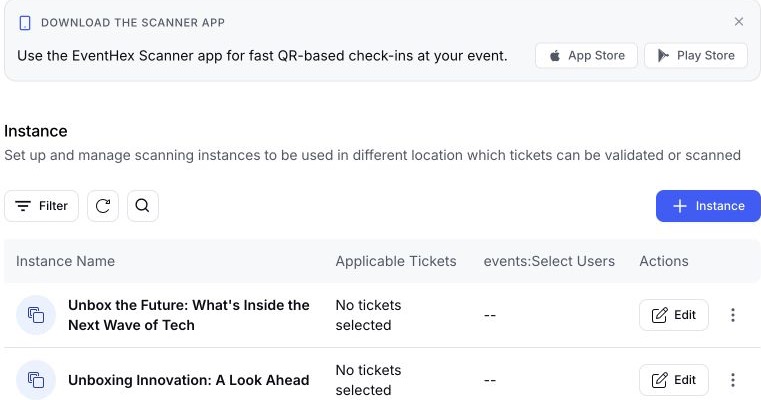
 Scanner app ready Download the app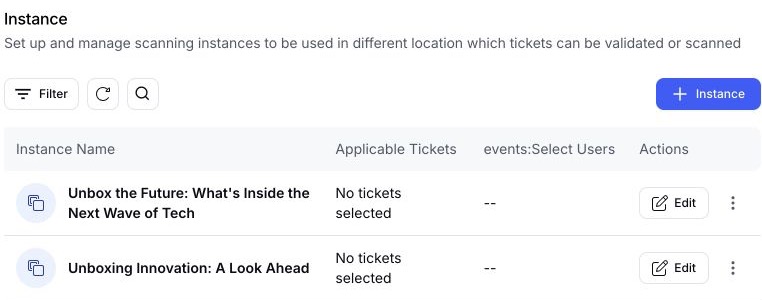
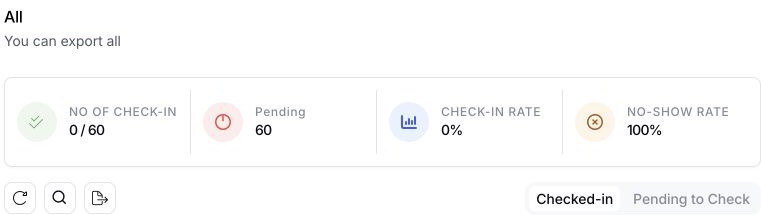
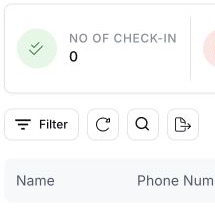 Instance scans ready Open scan mode
 Install EventHex Scanner from Google Play, then use the same event-day role and scanning workflow.
Google PlayStore availability, device compatibility, camera permissions, and cached event data should be checked before doors open.
Keep the screen focused on the action the person at the entrance needs to take.
Choose the event and the intended scan mode.
Read the attendee ticket or badge code.
Check registration and ticket eligibility for that scan.
Mark attendance or show the reason the scan needs attention.
A scan result should answer what happened and what the team should do next without requiring a dashboard lookup.
Book a DemoConfirm the attendee and update attendance for the selected scan mode.
Show that this attendee already has attendance for the same event, ticket, or instance.
Explain when the attendee does not hold a ticket eligible for the selected instance.
Keep search and organizer review available for a QR that cannot be resolved as expected.
Prepare event data before doors open, continue recording eligible check-ins during an interruption, and sync pending work when connectivity returns.
Load the event and confirm scanner access while connectivity is available.
Keep the event-day interface clear about scans waiting to sync.
Move queued attendance back to the shared record when the network recovers.
Review pending and synced states before closing the event-day shift.
Keep arrival state connected to the same registration and ticket records used before the event.
Checked-in, registered, and pending state remains visible.
Review arrival by ticket or participant group, and separate entrance attendance from another scanning point.
The summary answers how many; the record answers who.
Create a named scanning point, attach the ticket types that can use it, and track that activity independently from arrival check-in.
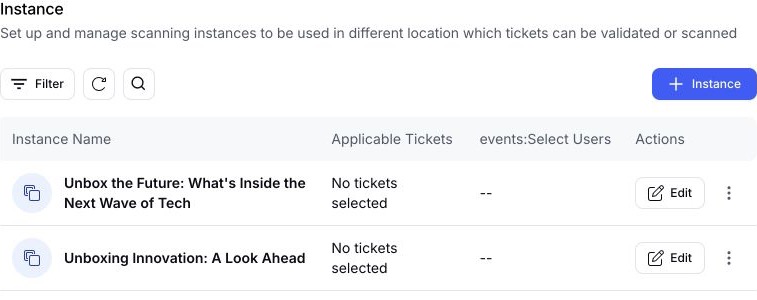 ✓ Scan point named Meals and refreshments Attendance kept separate
 Confirm who received an included meal or entered an F&B area.
Record entry for a ticket-based room or programmed activity.
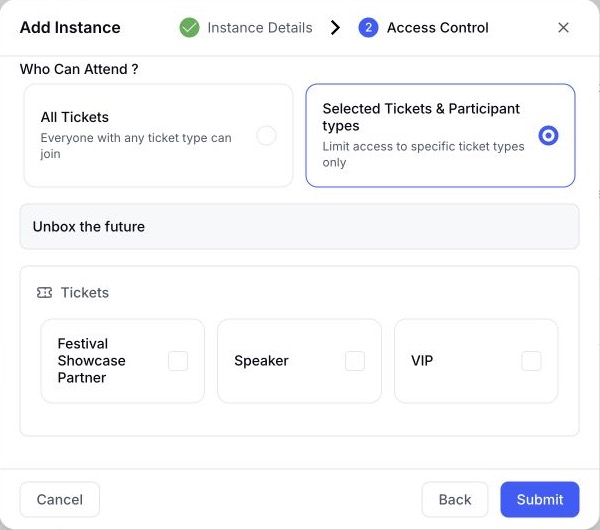 ✓ Ticket access set Eligible ticket types Room entry recorded
 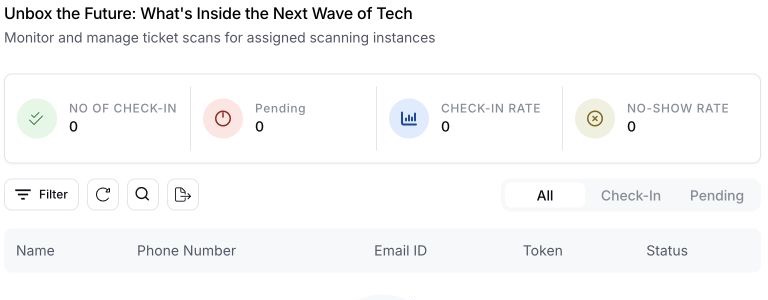 ✓ Item counted Per-instance attendance Duplicate checked
 Track whether an eligible attendee received the configured item.
Name the instance for the activity your operations team needs to count.
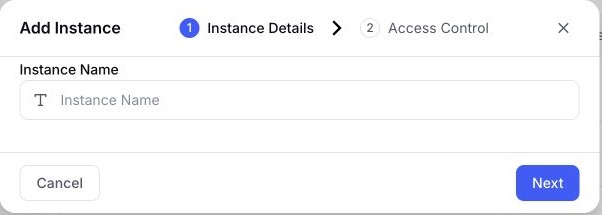 ✓ Instance created Name the scan point Ready for Scanner
 The selected instance controls eligibility and keeps its attendance separate.
Name the meal, session, merchandise point, or activity.
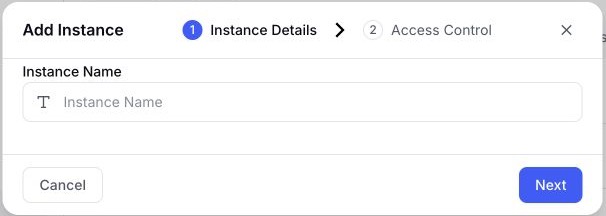 Instance named
 Choose which registrations are eligible for that point.
Eligible tickets linked Staff select the instance that appears for the event.
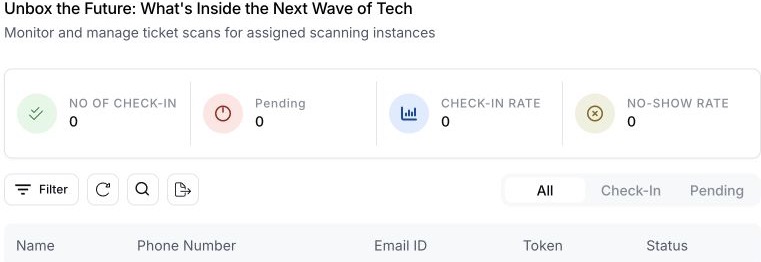
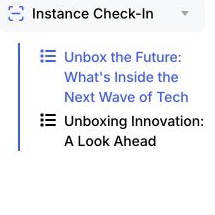
Scanner instance mode See attendance and duplicate state for that instance.
Per-instance count The mobile Scanner and the browser-based Event Day Portal support different event-day stations around the same attendance data.
Use the iOS or Android Scanner app for moving teams, entrances, and ticket-based scanning points.
Best for handheld scanning Scanner app ready Open in Scanner Attendance view ready Open Event Day Portal Use the Event Day Portal for attendee search, manual attendance, badge layout, and supported print paths.
Best for registration desksBadge-printing setup and printer compatibility are handled separately; this page keeps the handoff to the Event Day Portal clear.
Check-in validates arrival; these routes cover what comes before or after it.
Collect the attendee details and create the confirmed record used at the door.
Configure the ticket, access, and QR delivery path.
Design the badge and certificate outputs used around the event journey.
Review the supported registration and attendance signals after the event.
Yes. EventHex provides current App Store and Google Play links for the Scanner app. Confirm device compatibility and event access during setup.
The Scanner listing and Event Day Portal support offline-resilient workflows. Prepare event data in advance, watch pending sync state, and reconnect to update the shared record.
Attendance uniqueness is checked for the selected event, ticket, or instance. A repeat scan returns an already-marked result instead of silently adding another attendance record.
It is a named scan point with eligible ticket types, for example a meal, session, merchandise collection, or another entitlement, tracked separately from front-door arrival.
The Event Day Portal includes attendee search and manual attendance paths for desk operations.