Run the registration desk from one screen.
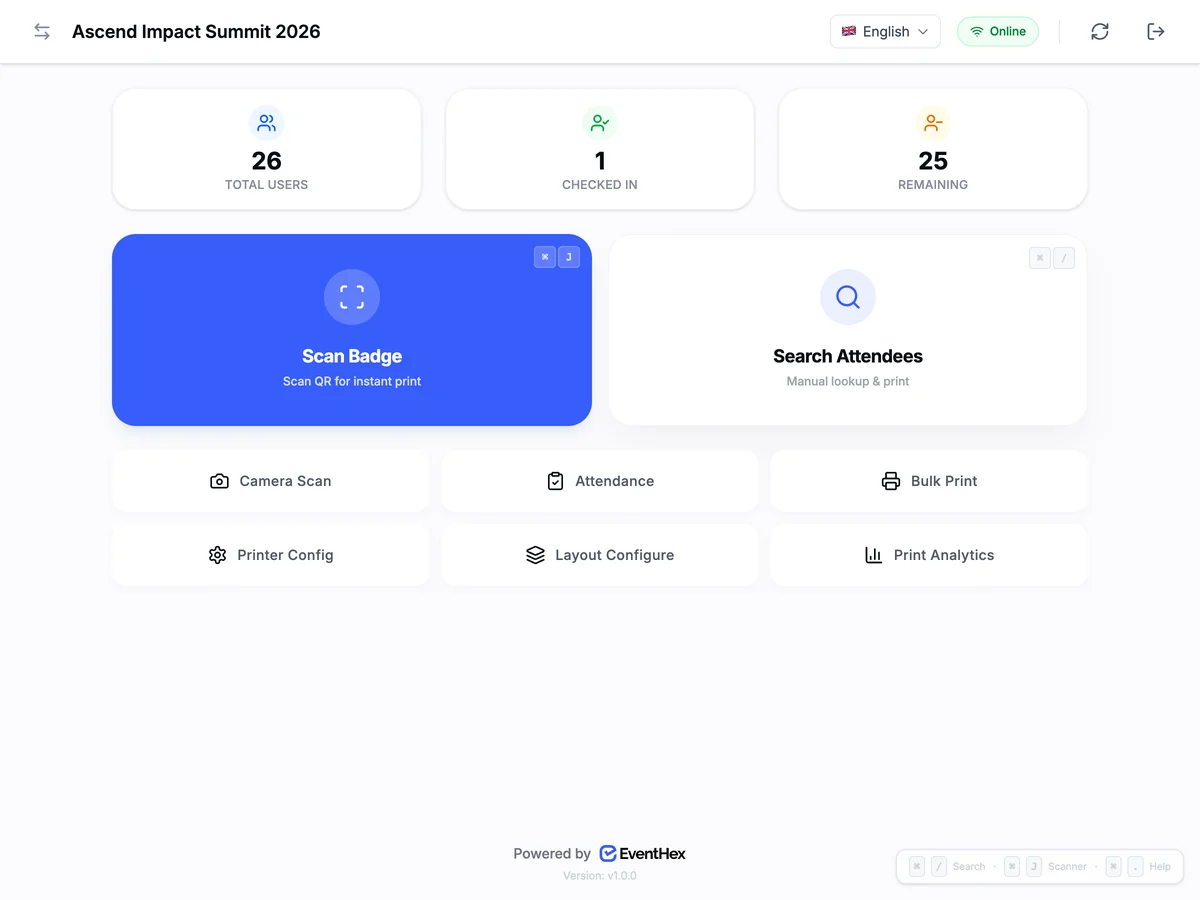
Find any attendee in seconds, check them in, print the badge you designed and watch arrivals, all from the EventHex Event Day Portal.
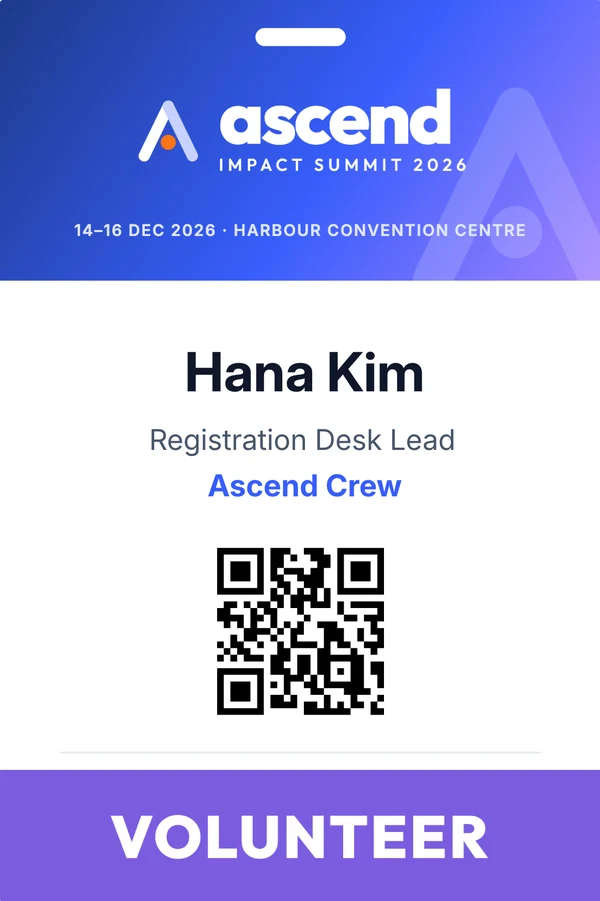
- FindScan, search or list
- Check inAttendance marked
- PrintYour badge design
- TrackWho printed, when
Find anyone at the desk in seconds
Three ways in, one result: checked in and wearing their badge. Keyboard shortcuts jump straight to search or the scanner.
-
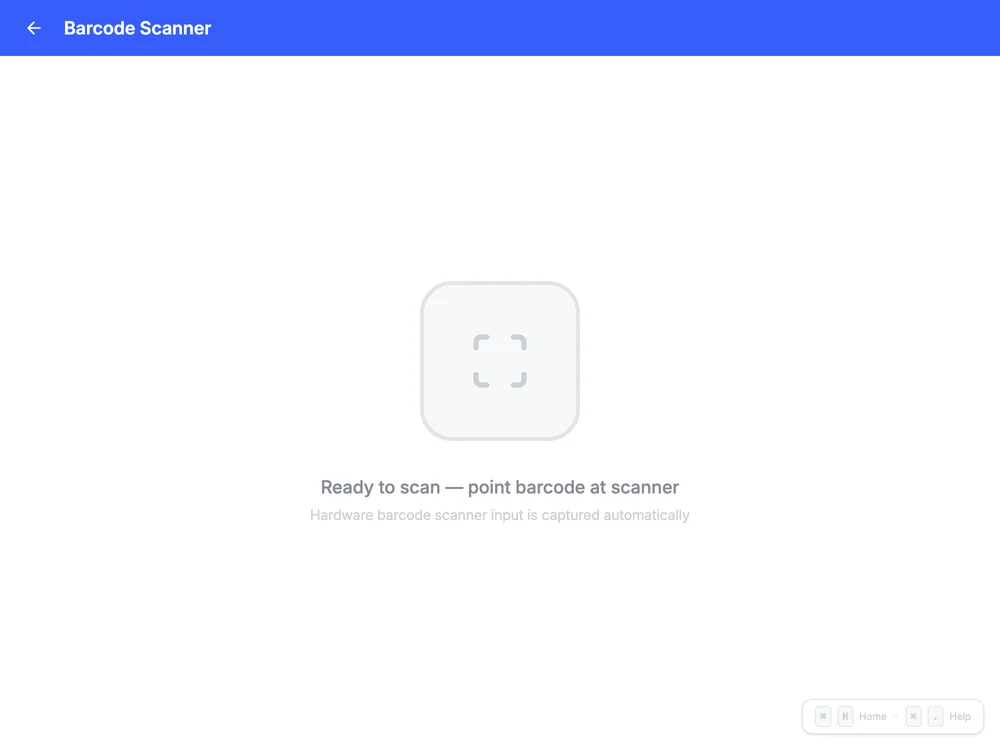
Scan the QR code
Use a handheld barcode scanner, or the device camera, to read the attendee's QR. They are found and checked in instantly.
-
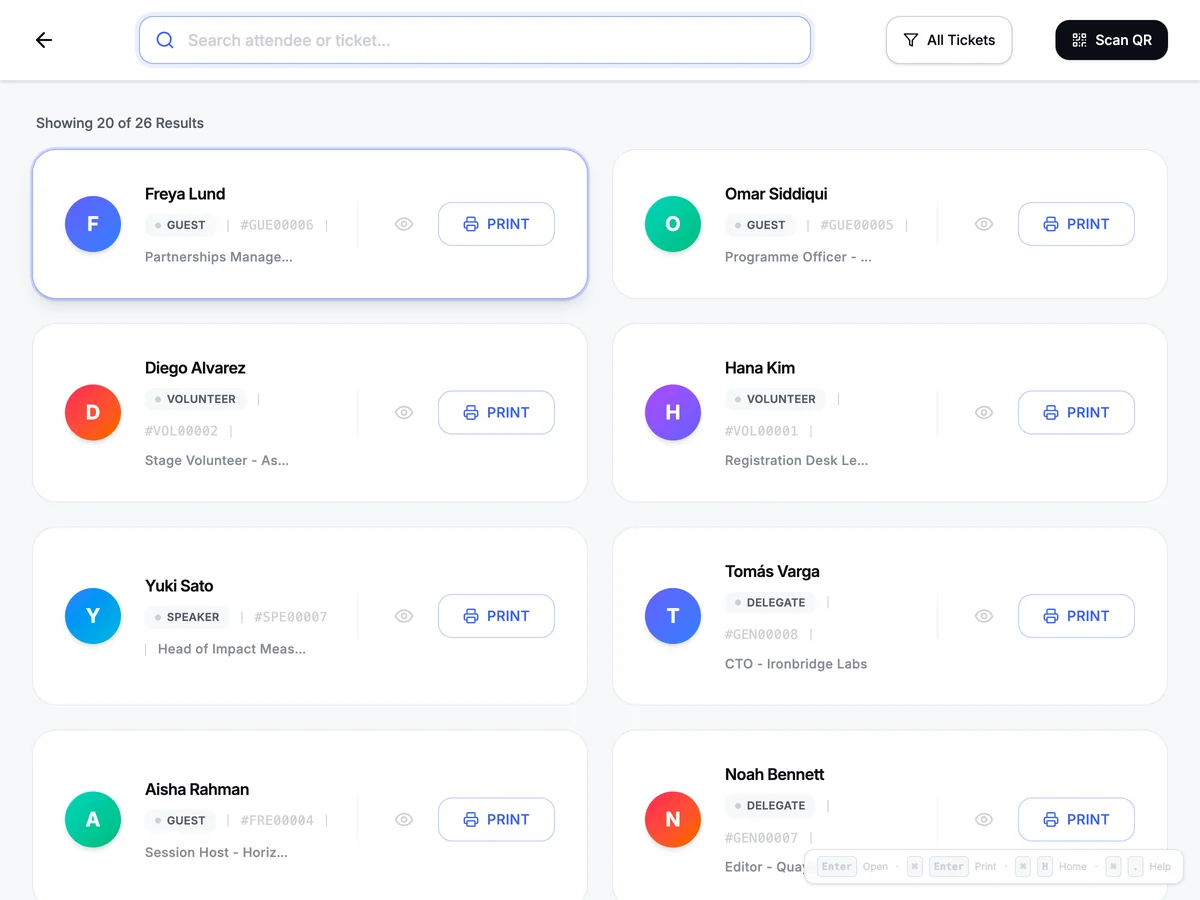
Search by name
Lost their QR? Search by name or ticket, see the ticket type, and print with one tap.
-
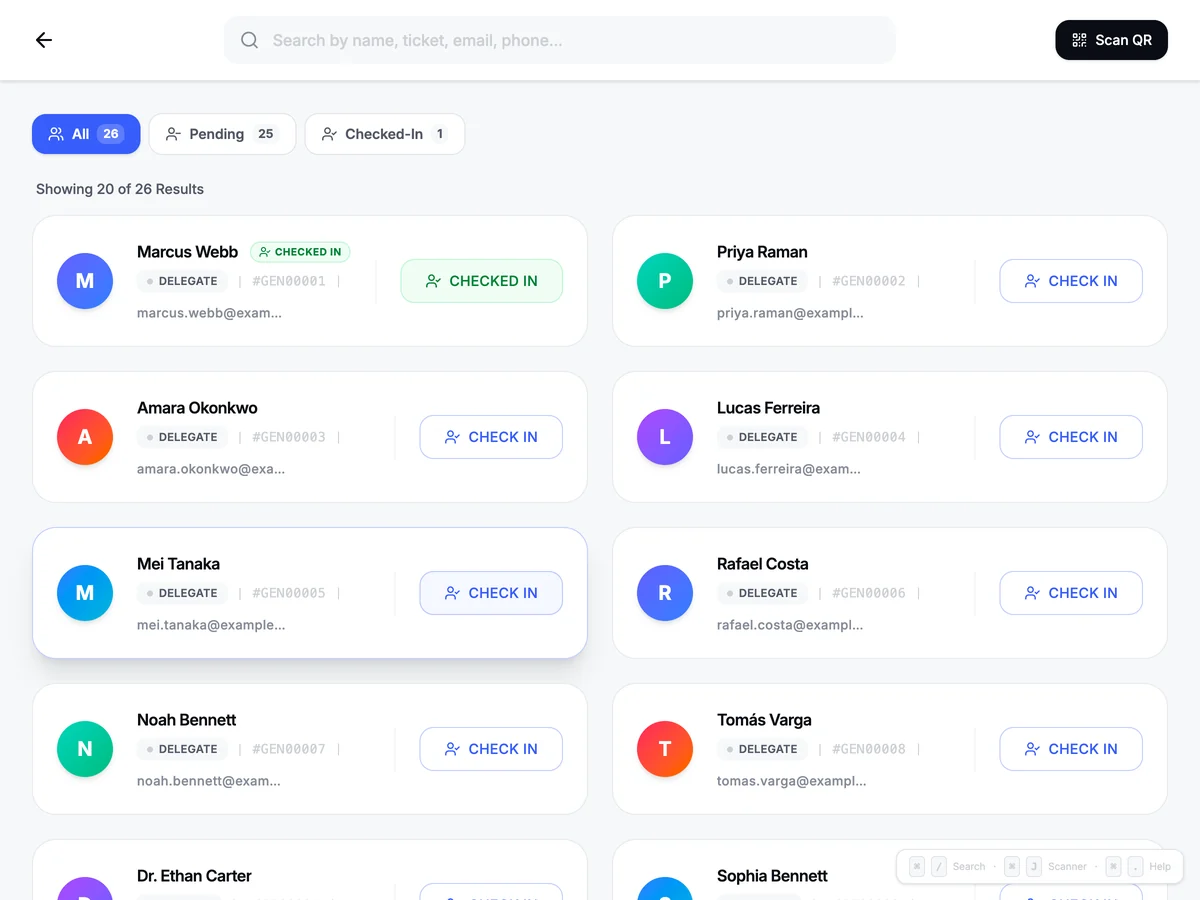
Check in from the list
Mark arrivals from the attendance list, with pending and checked-in counts as you go.
Confirm, fix and print without leaving the screen
Everything staff need about one attendee is on one card, so the line keeps moving.
- Step 1
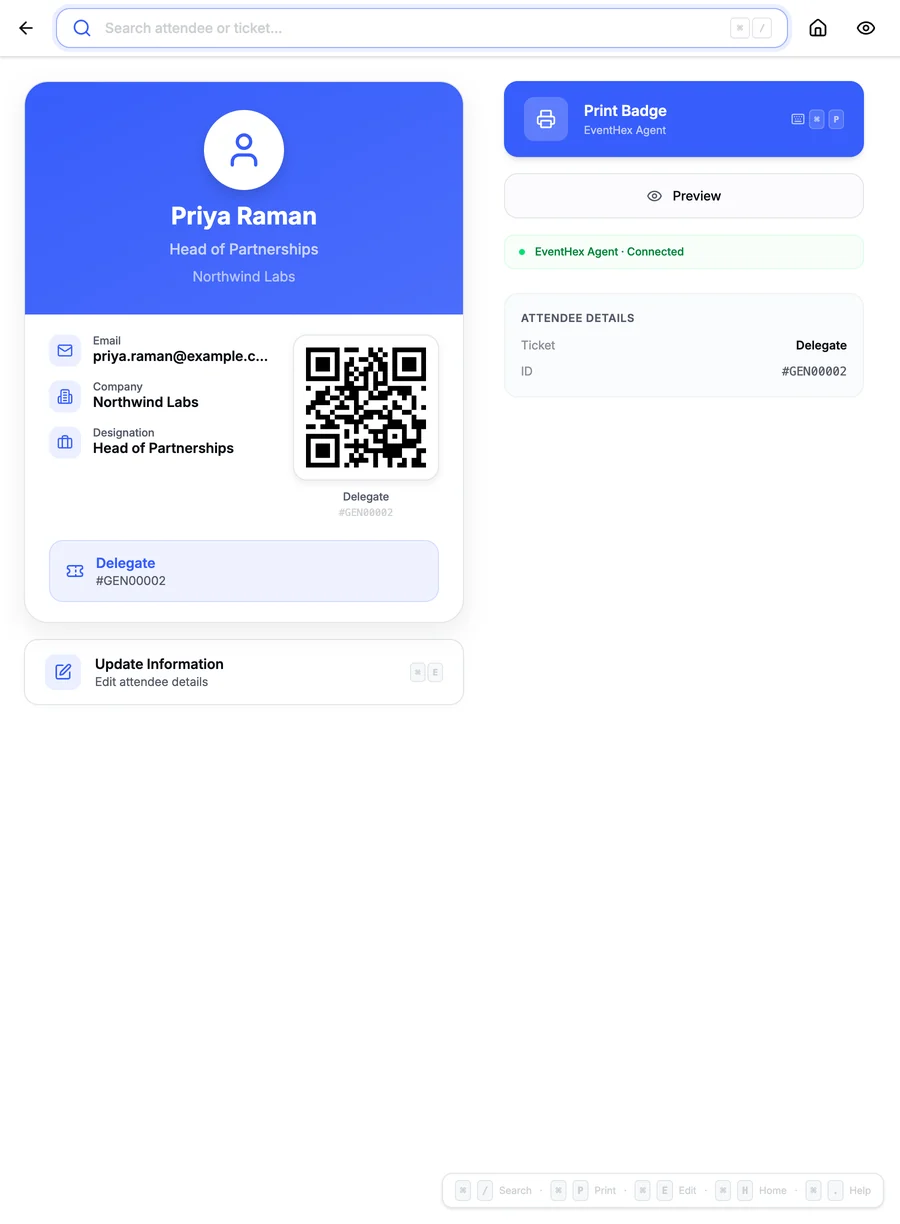
Confirm the attendee
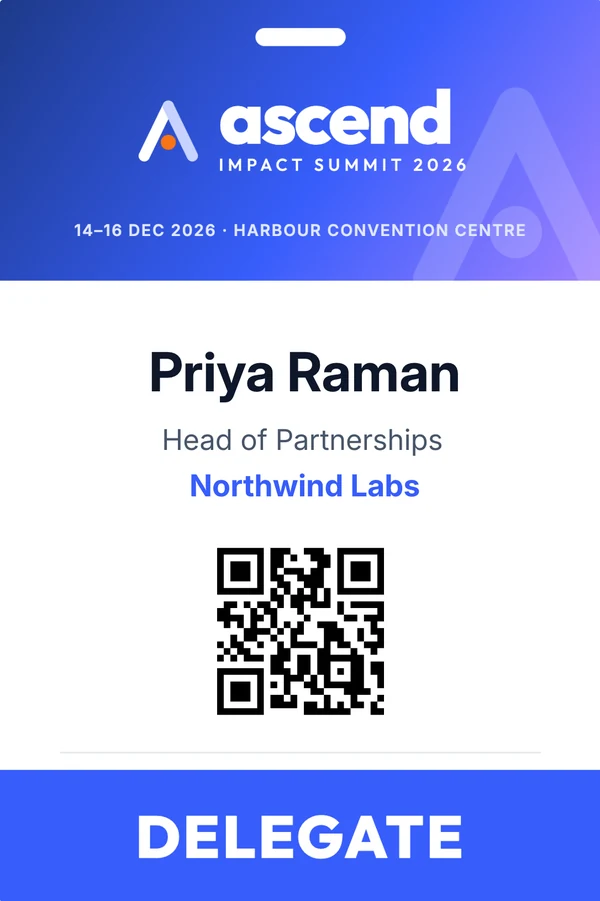
Name, company, ticket and QR on one card, with Print Badge and Preview right beside it.
- Step 2
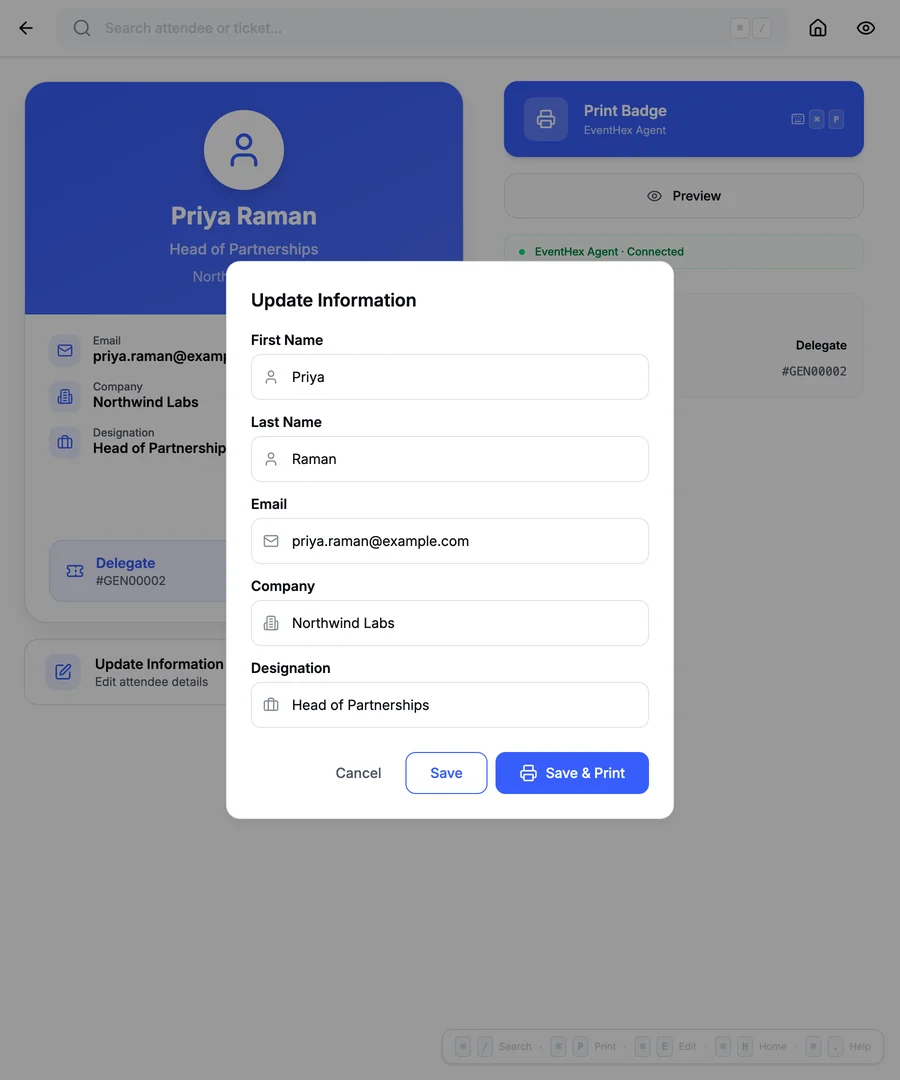
Fix details on the spot
Correct a name, company or designation at the desk, then Save & Print in one step.
- Step 3
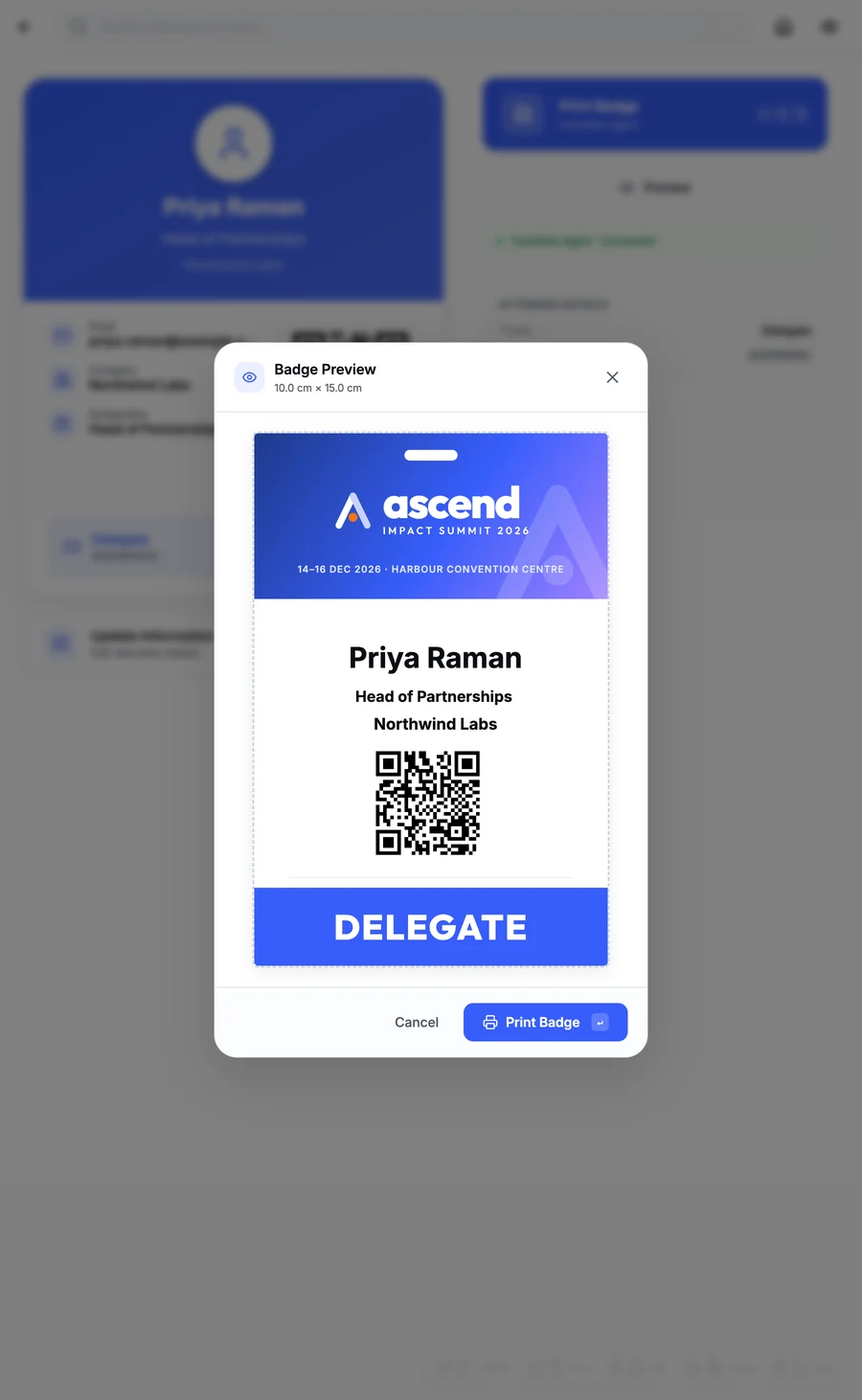
Preview before it prints
See the exact badge at its real size before it goes to the label printer.
Prints the badge you built, not a generic label
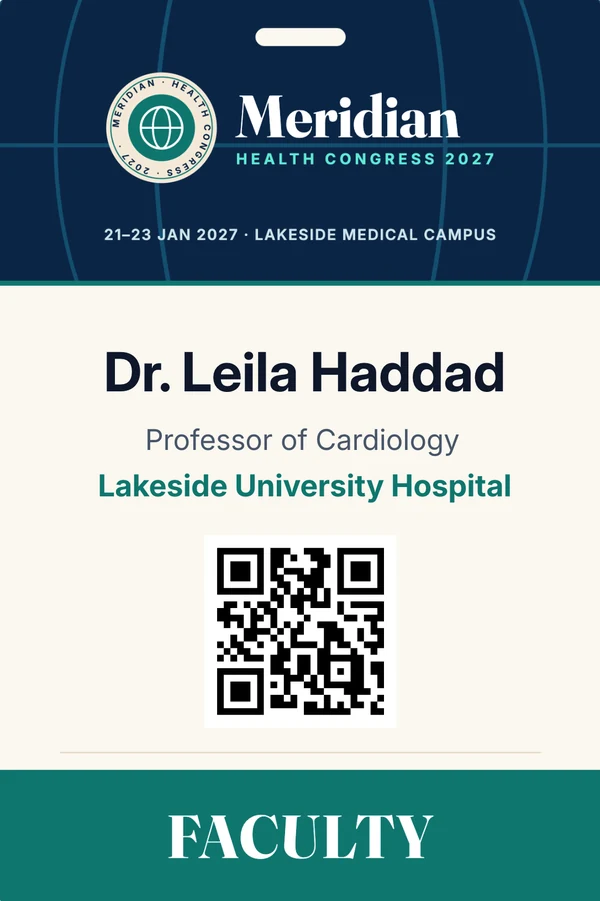
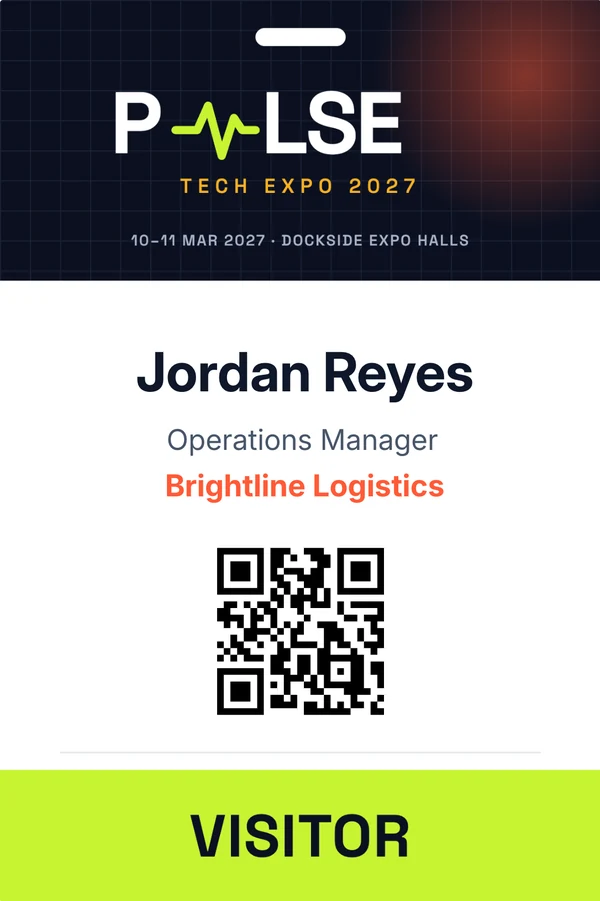
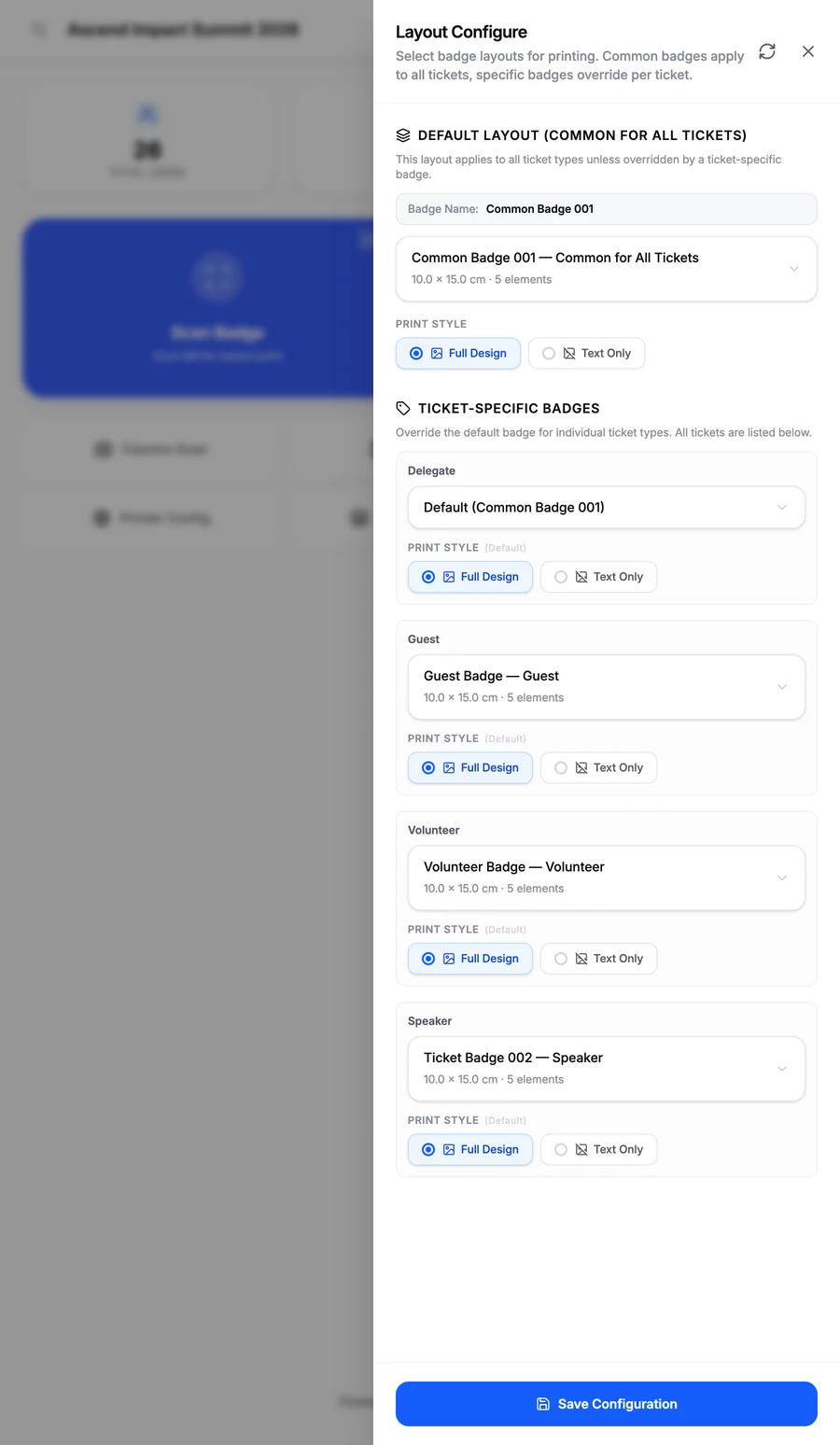
The portal loads the badge layouts from the Badge Builder, so common and ticket-specific designs print with each attendee's name, title, company and QR.
- A default badge for all tickets, with overrides per ticket
- Print style: full design, or text only for pre-printed badge stock
- Names in any script (Arabic, Devanagari, CJK)
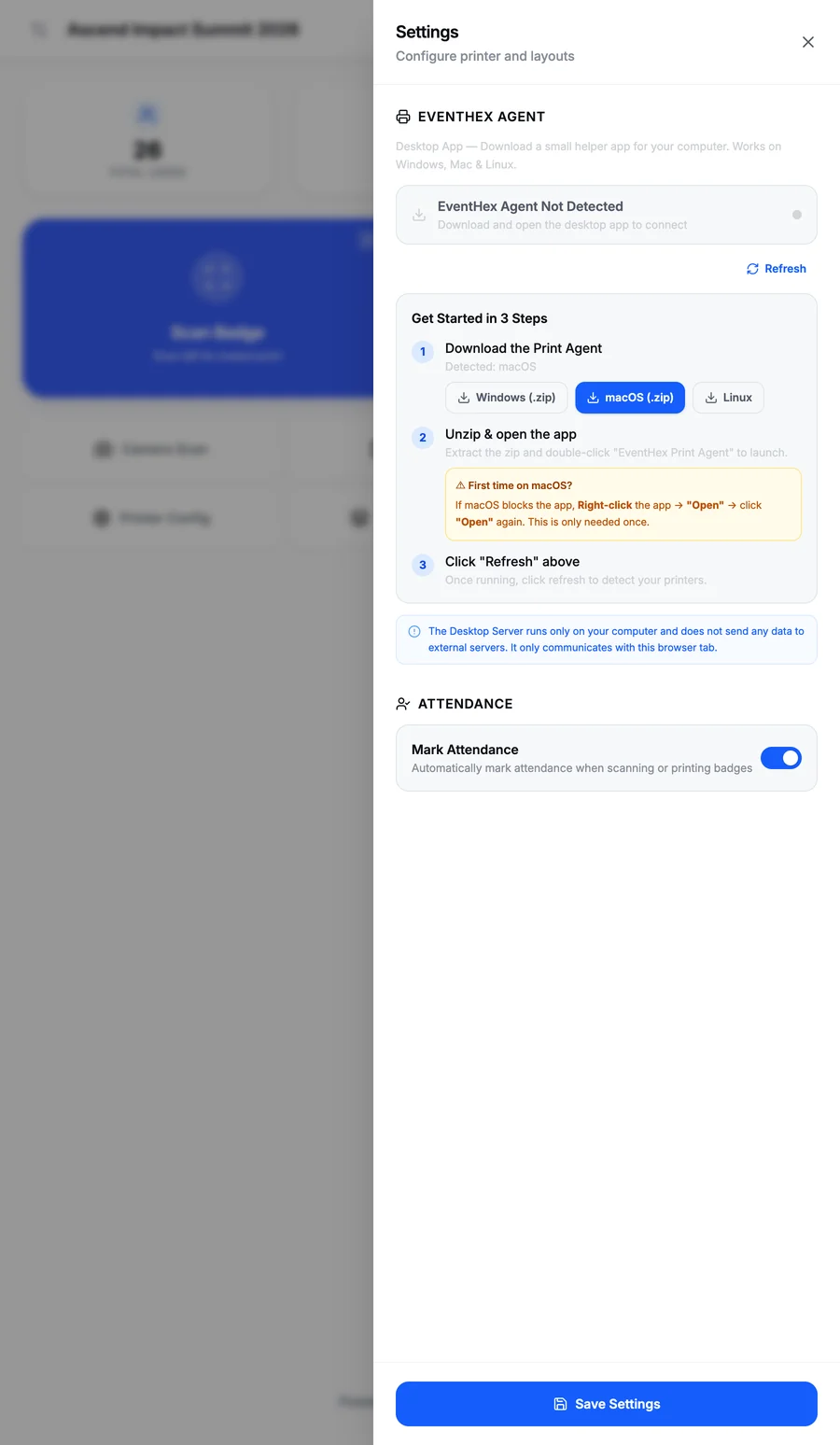
Works with the label printers events already use
Install the EventHex Print Agent on the desk computer in three steps. It runs only on that computer and sends badges straight to its installed printers, without a print dialog for every attendee. Already on QZ Tray? The portal prints through it too.
- Print Agent for Windows, macOS and Linux
- Zebra and other thermal label printers
- Mark attendance automatically when a badge prints
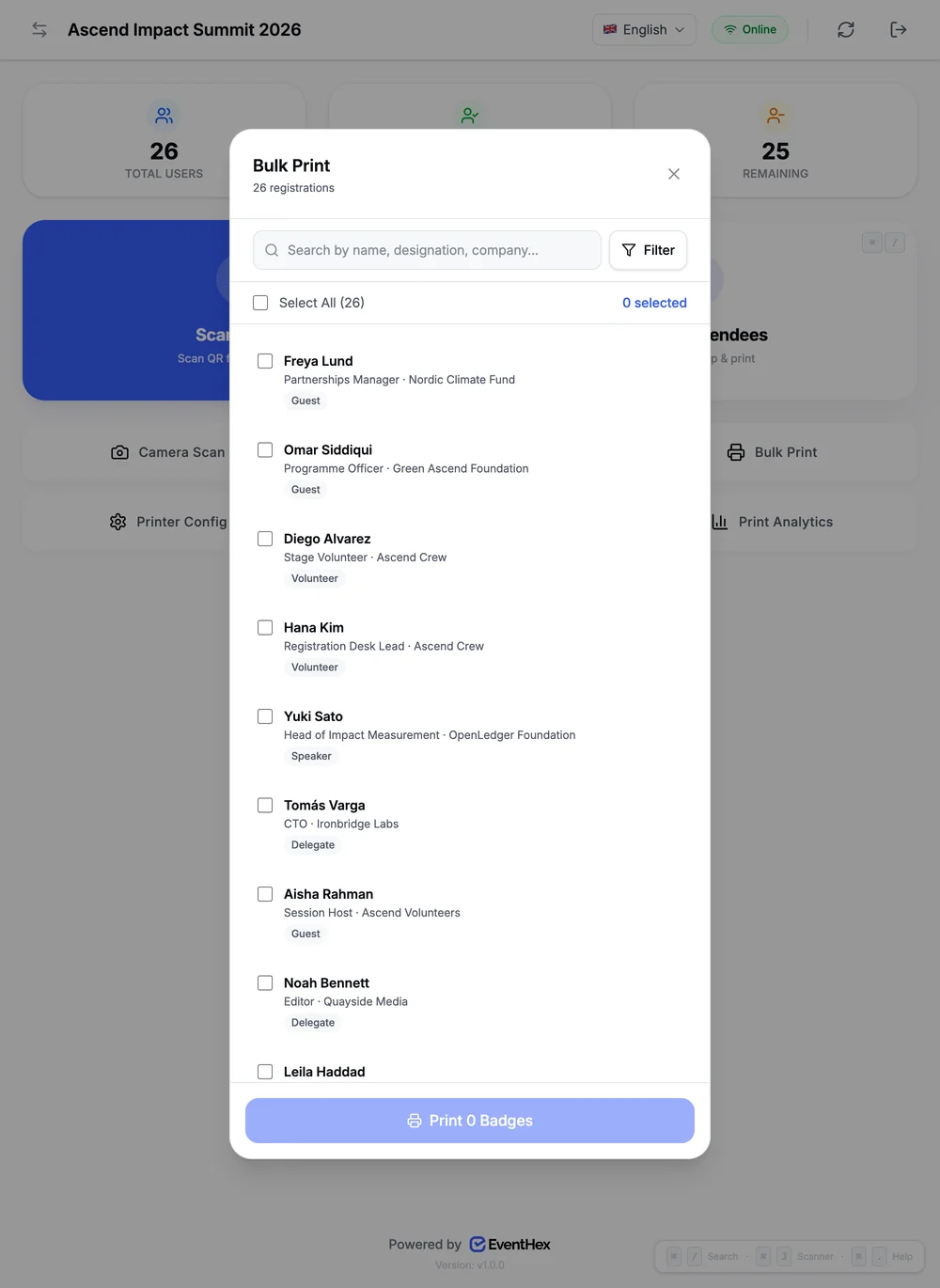
Built for the morning rush
- Every print is logged with who printed it, when, and the printer type
- Reprints are counted per attendee
- Check-ins queue and sync if Wi-Fi drops
- Live total, checked-in and remaining counts on the home screen
- Bulk print a selection: search, filter, select, print
- A print analytics view for the whole team
One scan does three jobs
- 1
Badge printed
The attendee leaves the desk with their own branded badge.
- 2
Attendance recorded
Check-in counts update for the event team.
- 3
Certificate unlocked
Only checked-in attendees are eligible for a certificate later.
How does onsite badge printing work?
Staff open the EventHex Event Day Portal at the registration desk, scan the attendee's QR code or search their name, and the attendee is checked in while their badge prints on the connected label printer.
Which printers are supported?
Zebra and other thermal label printers, connected through the EventHex Print Agent on the desk computer or through QZ Tray. Badges can also be exported as a PDF from the admin for pre-printing. Always test a label on your exact printer and stock.
Does it print the badge we designed?
Yes. The portal uses the badge layouts from the Badge Builder, including ticket-specific designs, and fills them with each attendee's details.
Which label sizes can we use?
Label presets include 76 × 20, 76 × 38, 76 × 51 and 100 × 150 mm.
What happens if the venue Wi-Fi drops?
Check-ins are queued on the device and synced when the connection returns, so the desk keeps moving.
Can we see who printed which badge?
Yes. Every print is logged with who printed it and when, reprints are counted per attendee, and the portal has a print analytics view.