
Short answer: With the EventHex app connected to ChatGPT, an authorized organizer can do more than ask general event-planning questions. Depending on the tools and permissions available to the connected account, ChatGPT can create and update event records, configure tickets, build an agenda, work with attendees, review live performance, and prepare or publish an event website—all while EventHex remains the system of record.
This is not a list of hypothetical AI ideas. The 15 workflows below map to practical operations exposed through the EventHex connection. Some are read-only, some change private event data, and some affect public pages or sensitive data and therefore need a clear review or approval step.
If you are new to the underlying connection, start with our practical guide to event management MCP servers. If you are comparing vendors, see our review of event tech platforms that work with ChatGPT and AI assistants.
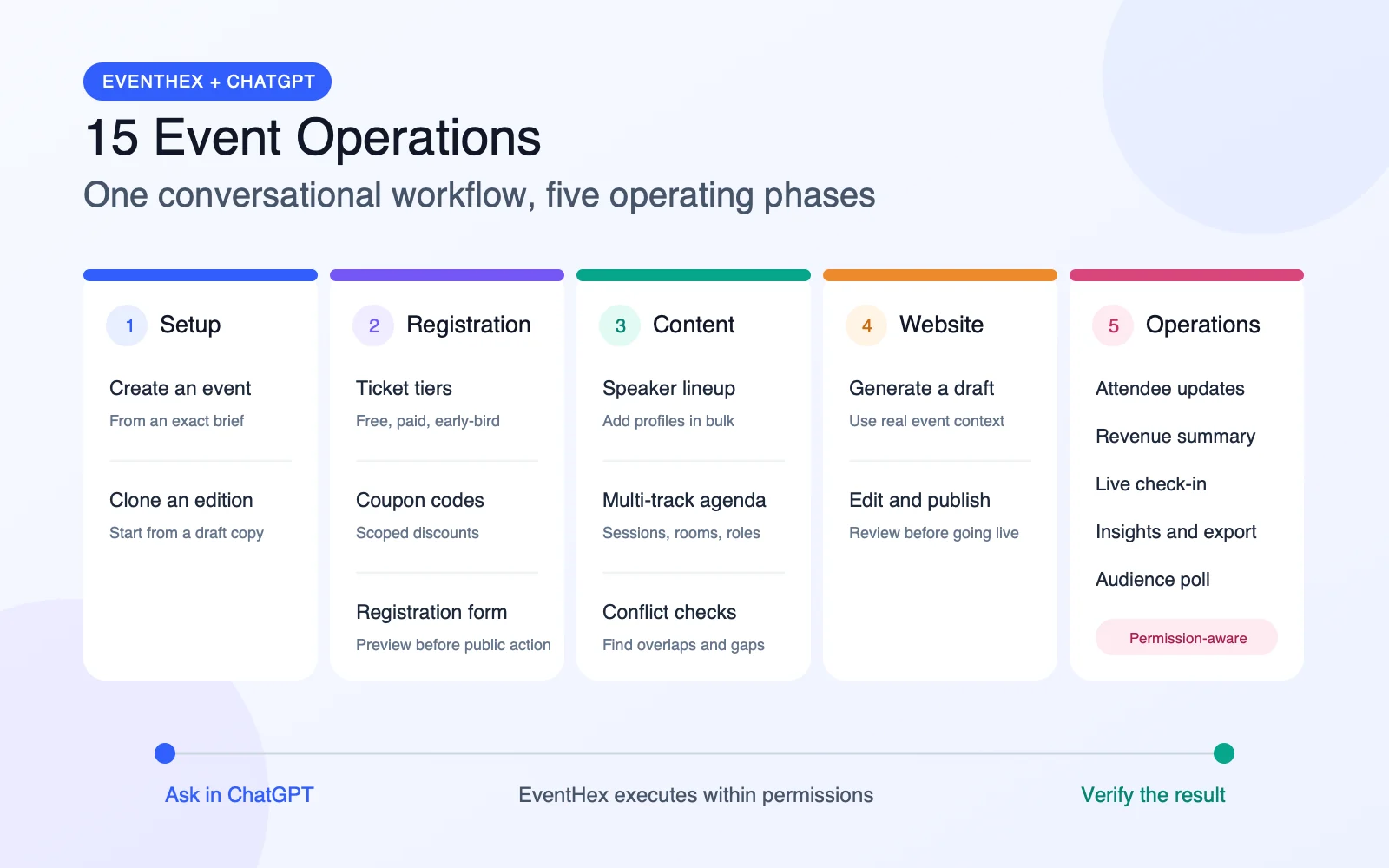
Top 15 EventHex operations you can run from ChatGPT
| Event phase | What you can do | Typical control |
|---|---|---|
| Setup | Create or clone an event and configure its details | Writes to the connected EventHex account |
| Registration | Build tickets, discounts, coupons, and forms | Review pricing and public form actions |
| Content | Add speakers, build sessions, and check conflicts | Uses real speaker and session identifiers |
| Website | Generate, edit, review, and publish the event website | Draft and public states remain separate |
| Operations | Manage attendees, analytics, check-in, exports, and polls | Permissions and confirmation protect sensitive actions |
1. Create an event from a conversational brief
Instead of completing a long setup form field by field, give ChatGPT the core brief: event name, dates, timezone, venue or online format, and description. EventHex can turn those details into a real event record and return the created event identifier and website address.
Example prompt: “Create an in-person event called Product Leaders Summit on 12–13 November 2026 in Dubai. Use Asia/Dubai as the timezone and add this two-paragraph event description.”
The best results come from including the non-negotiable facts in the first request. ChatGPT should ask for any required detail that is missing instead of guessing a date, timezone, venue, or URL.
2. Clone a previous event for the next edition
Recurring conferences, annual awards, and franchise events rarely need to start from zero. EventHex can list the events available to the connected account, identify the correct source event, and clone it as a new draft edition.
Example prompt: “Use our 2026 Partner Conference as the starting point for the 2027 edition. Clone it as a draft, then tell me the new event ID before changing anything else.”
Cloning is particularly useful when the ticket structure, speaker workflow, or website format is similar. The organizer can then update the new edition without disturbing the original event.
3. Build free, paid, and early-bird ticket tiers
Ask ChatGPT to create multiple ticket tiers in one conversation, including titles, prices, capacities, and early-bird rules. EventHex stores each tier as its own ticket, so the result remains editable and reportable inside the event platform.
Example prompt: “Create three tickets: VIP with a capacity of 100, Standard with a capacity of 400, and a free Student pass with a capacity of 75. Show me the proposed prices and early-bird end date before you create the paid tiers.”
Pricing needs deliberate review. The assistant should use the currency configured for the event, preserve the distinction between a final early-bird price and a percentage discount, and report the ticket IDs it created. Explore the broader EventHex ticketing workflow.
4. Create and update event coupon codes
Coupons are different from automatic early-bird pricing. They are event-scoped codes that an organizer can create, inspect, and update for partners, speakers, sponsors, or promotional campaigns.
Example prompt: “Create a partner coupon called PARTNER20 for this event. Before saving it, confirm the discount type, value, validity dates, and which ticket tiers it should apply to.”
A conversational workflow is useful here because it can surface ambiguity before a code goes live. “20 off” is not enough: the assistant should establish whether that means a fixed amount or a percentage and which event currency applies.
5. Create a registration form
EventHex can create a registration form for an event through the ChatGPT connection. Because the result may be publicly reachable and collect attendee information, this is an action that deserves an explicit preview and approval step.
Example prompt: “Prepare a registration form for the Product Leaders Summit with name, work email, company, job title, country, and dietary requirements. Show me the full field list and public-action preview before creating it.”
Use this workflow to agree on required fields, consent wording, and the minimum data the event actually needs. For the attendee-facing experience, see EventHex event registration.
6. Add a speaker lineup in bulk
Provide a structured speaker list and ask ChatGPT to create the profiles together. EventHex supports names, roles, companies, biographies, and speaker photos, with each speaker reported individually so one failed item does not hide the status of the rest.
Example prompt: “Add these eight speakers to the Annual Innovation Forum. First check the existing speaker list for duplicates. Then create only the missing profiles and report any row that needs a correction.”
If photos come from external URLs, EventHex can copy them into its own media workflow for the speaker profile. The source still needs to be authorized for use; an accessible image URL is not automatically a reusable image.
7. Build a multi-track agenda from a schedule
ChatGPT can turn a spreadsheet-style schedule or written run sheet into EventHex sessions. The connection supports regular sessions, breaks, nested sub-sessions, stages or rooms, descriptions, and role-aware speaker assignments such as moderator or keynote speaker.
Example prompt: “Build Friday’s agenda from this schedule. Keep lunch and coffee as breaks, use the room names exactly as provided, and assign each moderator and keynote speaker to the correct session.”
Session times follow the event’s configured timezone. After batch creation, the assistant should report successes and failures item by item instead of responding with a vague “done.” Learn more about session management and speaker management.
8. Detect schedule conflicts and setup gaps
Once the agenda exists, ask ChatGPT to inspect it rather than manually comparing every time slot. EventHex can check stored session timing for conflicts and generate an event setup checklist that highlights incomplete areas.
Example prompt: “Check this event for overlapping sessions and incomplete setup. Group the findings into blockers, items to review, and items already ready.”
This is a low-risk place to start with conversational event operations because the tools can read and evaluate the current setup without deleting or publishing anything. The organizer still decides how to resolve each issue.
9. Generate a complete event website draft
Give ChatGPT a design direction and EventHex can generate candidate website specifications using the event’s real context. The selected version can then be saved as a private draft for review.
Example prompt: “Create a modern editorial website draft for this leadership summit. Lead with the event value proposition, then include speakers, agenda, venue, tickets, sponsors, and a registration call to action. Do not publish it.”
The phrase “do not publish it” makes the intended boundary obvious. Generating and applying a website specification does not need to make it public. Read more about the EventHex event website builder.
10. Edit the design, improve content, and publish after review
For an existing event website, ChatGPT can help improve a section, adjust the design system, manage sections, generate SEO metadata, and review the saved draft. EventHex keeps design edits and public publishing as separate states.
Example prompt: “Change the draft to a light editorial style with our approved brand blue, tighten the hero copy, and move the agenda above the speakers. Show me the reviewed draft state. Publish only after I tell you to make it live.”
When publication is requested, the assistant should return the exact URL supplied by EventHex rather than constructing or guessing a domain. This draft-to-review-to-publish sequence is one of the clearest examples of why an action-capable connection is more useful than a generic chatbot.
11. Find and update an individual attendee record
Event teams regularly need to correct a name, approval state, ticket assignment, or registration detail. ChatGPT can search within one event, retrieve the matching attendee record, and apply an authorized update.
Example prompt: “Find Priya Nair in the Product Leaders Summit registrations. Show me the matching record without exposing other attendees, then move her to the VIP ticket after I confirm the correct person.”
Narrow lookup is safer than asking for a full attendee list in chat. The assistant should resolve the event first, show enough information to confirm the match, and state which attendee record was changed.
12. Review registrations, revenue, and ticket performance
Ask for an operational summary and EventHex can return per-event registration totals with optional daily trends, collected or pending revenue, refunds, net revenue, and performance by ticket type.
Example prompt: “Give me today’s health summary for the Annual Innovation Forum: attendee registrations, seven-day trend, collected and pending revenue, refunds, and registrations by ticket. State the event name and metric scope beside every number.”
The scope matters. A useful answer says whether a count represents attendees, paid registrations, all participant types, or check-ins, and it preserves the event’s configured currency. See the broader EventHex analytics capabilities.
13. Monitor on-site check-in progress
During the event, ChatGPT can retrieve current check-in statistics from EventHex and summarize progress for the operations team. This can reduce the time spent switching between dashboards during a busy arrival window.
Example prompt: “Show current check-in progress for this event and compare it with total attendee registrations. Tell me the exact check-in count, remaining expected attendees, and the time of the snapshot.”
Because live numbers change quickly, every summary should identify the event and the snapshot time. For the full arrival workflow, explore EventHex event check-in.
14. Summarize audience insights and export attendees safely
EventHex can aggregate form answers into audience insights for a read-only summary. When a team genuinely needs the full attendee file, it can also prepare a short-lived export rather than pasting bulk personal data into the conversation.
Example prompt: “Summarize the audience profile for this event by the available registration-form fields. Do not show individual contact details. Then prepare an attendee export preview, but wait for my approval before creating the file.”
The export operation requires the appropriate registration-export permission and an explicit confirmation flow. This boundary helps keep a useful analytics question separate from the higher-risk handling of bulk attendee data.
15. Create a live audience poll
ChatGPT can prepare a poll for an event, including the question and answer options, and EventHex can create and activate it after the organizer reviews the public-action preview.
Example prompt: “Prepare a live poll asking which product trend will matter most in 2027, with these four answer options. Show the final wording and activation preview before creating the poll.”
The preview is important because a live poll becomes part of the attendee experience. Confirm the event, wording, answer order, and intended activation state before it goes public. Explore EventHex live polling and Q&A.
How to get reliable results from EventHex in ChatGPT
Conversational event operations work best when the request includes both the outcome and the boundaries. Use these five habits:
- Name the event precisely. If more than one event could match, ask the assistant to list the choices and resolve the real event ID first.
- Supply exact dates, timezone, currency, and capacity. These are operational facts, not details the assistant should infer.
- Ask for a preview before consequential actions. This is especially important for public forms, polls, attendee exports, deletion, pricing, and website publication.
- Request item-level results for batches. Speaker and session imports can partially succeed; the response should identify every failed item.
- Verify the returned state. Re-open the event record, draft, analytics scope, or exact published URL instead of treating a conversational acknowledgement as proof.
What still requires human judgment?
Running an operation through ChatGPT does not remove accountability from the event team. An organizer still needs to approve ticket strategy, confirm speaker rights and information, decide which attendee data is necessary, review public content, interpret analytics in context, and authorize high-impact changes.
The strongest workflow is collaborative: ChatGPT handles structured execution and retrieval; EventHex enforces account, event, scope, and confirmation boundaries; the organizer makes the decisions.
Frequently asked questions
Can ChatGPT really manage an event in EventHex?
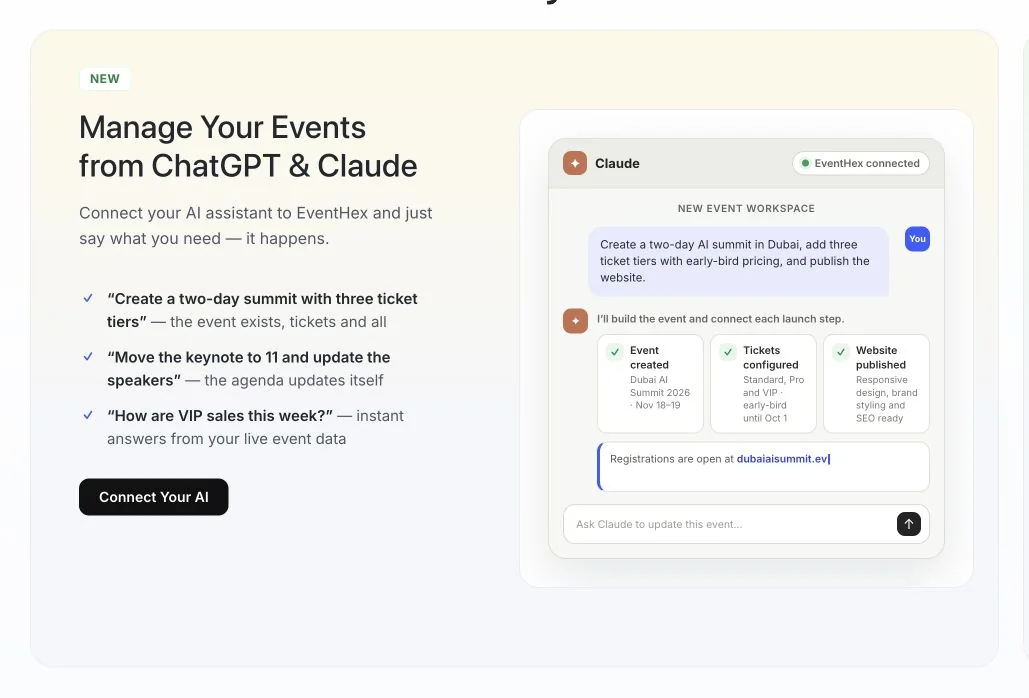
It can perform the EventHex operations exposed to the connected account, subject to available tools, scopes, and user permissions. This includes practical workflows across setup, ticketing, agenda, attendees, analytics, engagement, and event websites. It does not mean ChatGPT has unrestricted access to every platform feature.
Does every EventHex operation run automatically?
No. Read-only requests can usually return information directly. Some write operations change private event data, while public, destructive, or sensitive operations may require a preview and explicit approval. Website edits can remain private drafts until the organizer asks to publish.
Do I need to know MCP to use the EventHex ChatGPT app?
No. MCP is the connection standard behind the workflow. Organizers can focus on the event outcome and communicate through normal language, while the assistant selects the appropriate EventHex tools.
Can ChatGPT access all attendee data?
Access depends on the connected account’s permissions and the specific tool. Narrow attendee searches are preferable for individual support. Bulk exports use a separate permission and confirmation flow, and the exported personal data should not be pasted into the conversation.
Where can I add the EventHex app in ChatGPT?
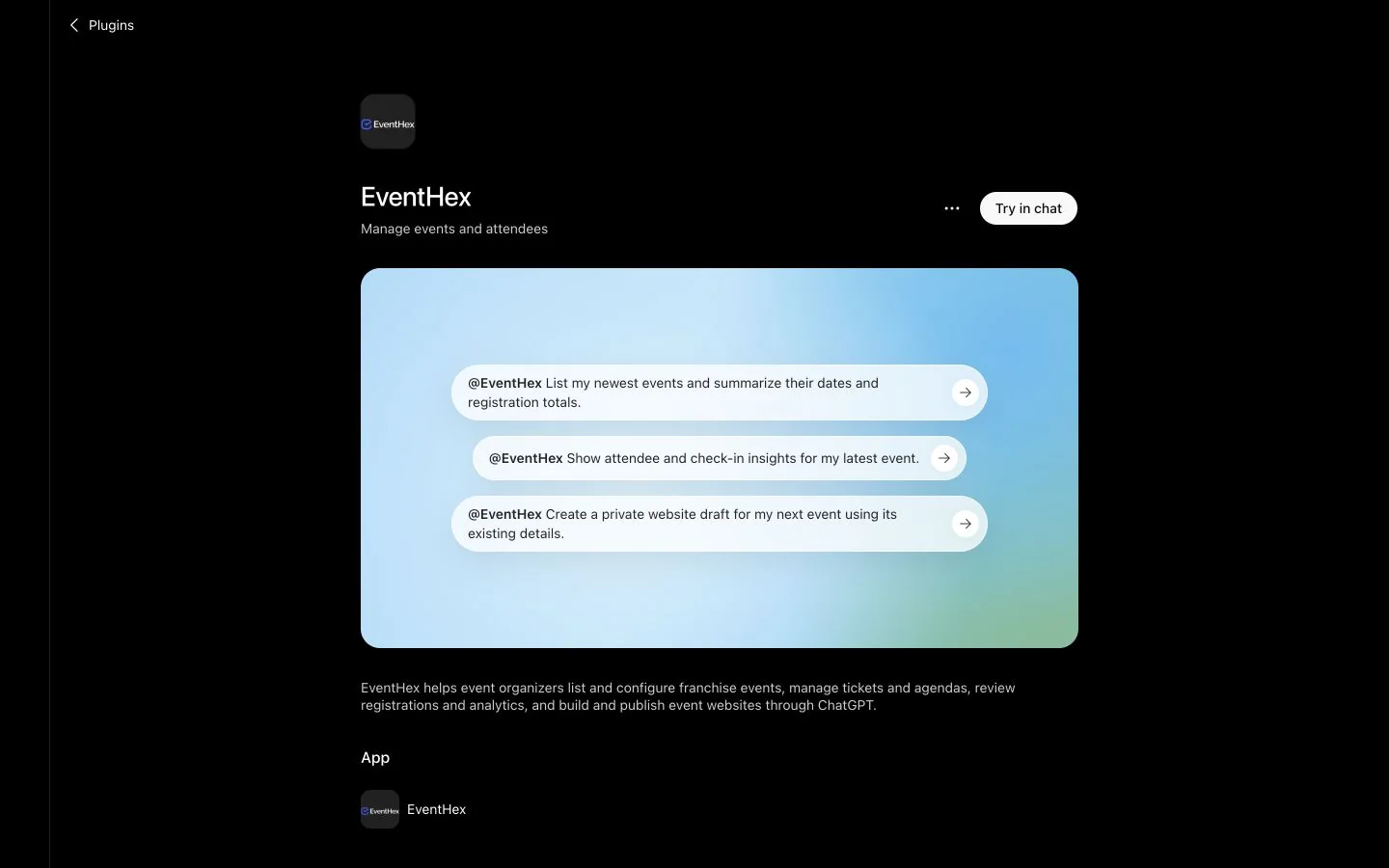
You can open the published EventHex app page in ChatGPT. You will need to sign in and connect an authorized EventHex account before account-specific operations are available.
Turn conversation into controlled event execution
The real advantage of managing EventHex from ChatGPT is not that every event decision becomes automatic. It is that organizers can move from a request to a structured, permission-aware operation without translating the same intent across multiple screens.
Start with one read-only workflow, such as a setup check or registration summary. Then test a reversible update. Once the team is comfortable with event selection, permissions, previews, and returned results, expand into ticketing, agenda creation, attendee operations, and website publishing.
Ready to see the workflows in action? Book an EventHex demo or open EventHex in ChatGPT.